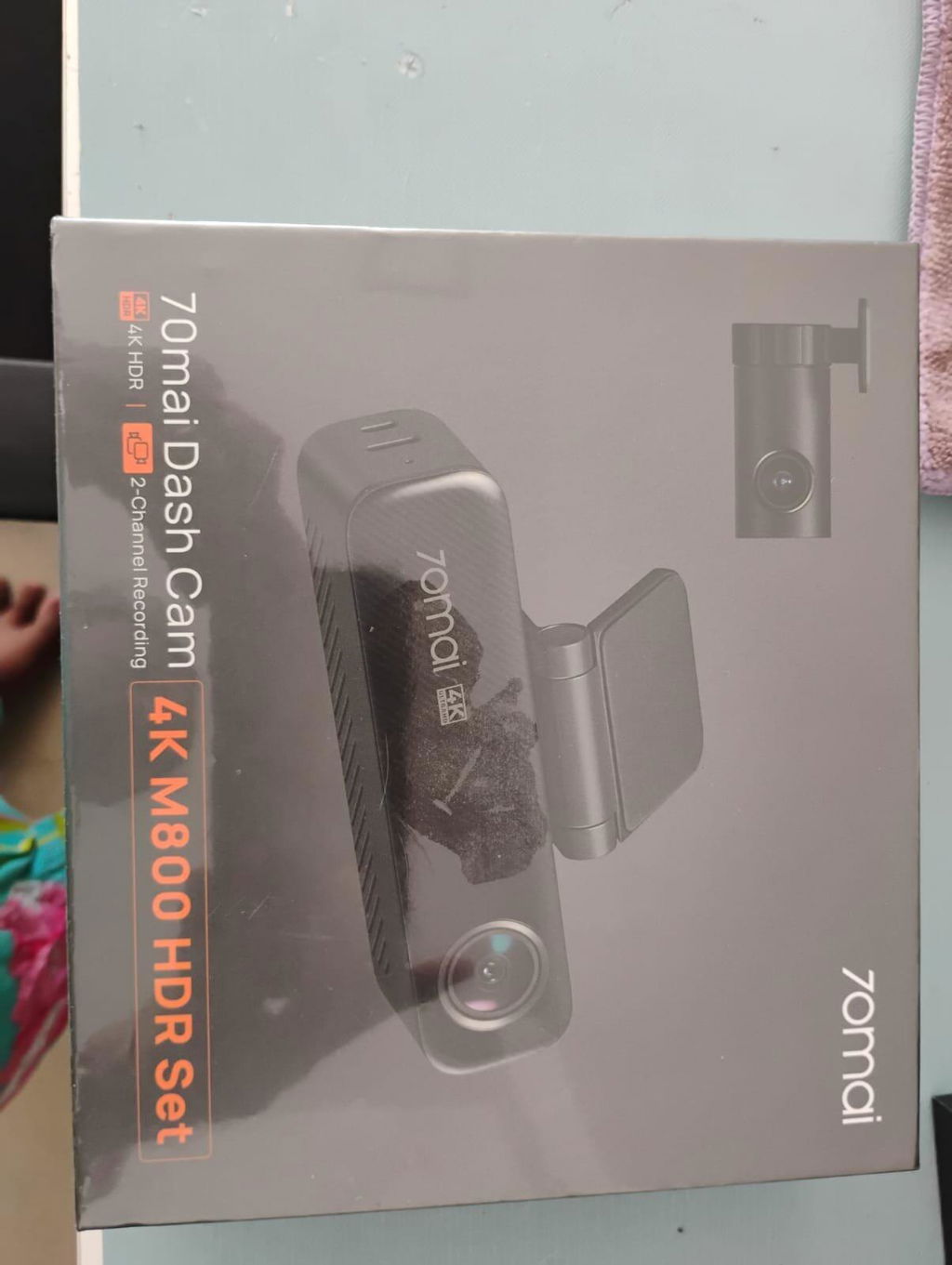
70mai Dash Cam 4K M800 with Built-In eMMC 128GB, Dual Sony STARVIS 2, HDR Recording & Compact Design
Checkout securely with
Built-in eMMC storage offers better performance and longer lifespan than memory cards, ensuring safer and more reliable recording without video loss, errors, or frequent replacements. Your footage stays safe and your drive stays worry-free.
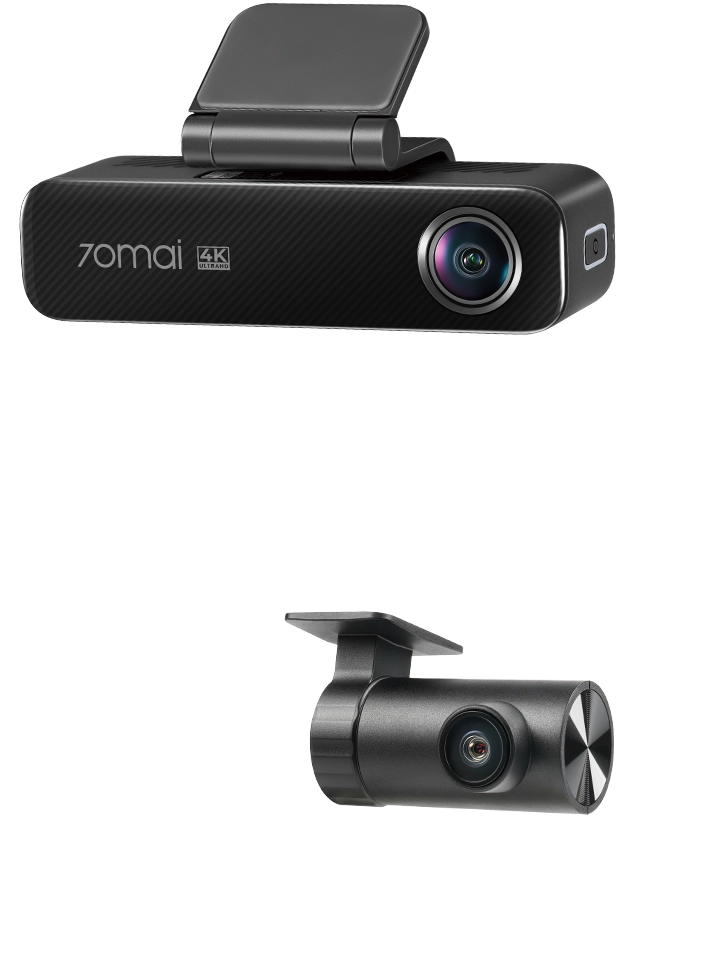
Equipped with Sony's next-generation STARVIS 2 technology on both the front and rear cameras, the 4K M800 consistently records high-quality, reliable footage in all lighting conditions, providing solid visual evidence to defend your safety and your rights.
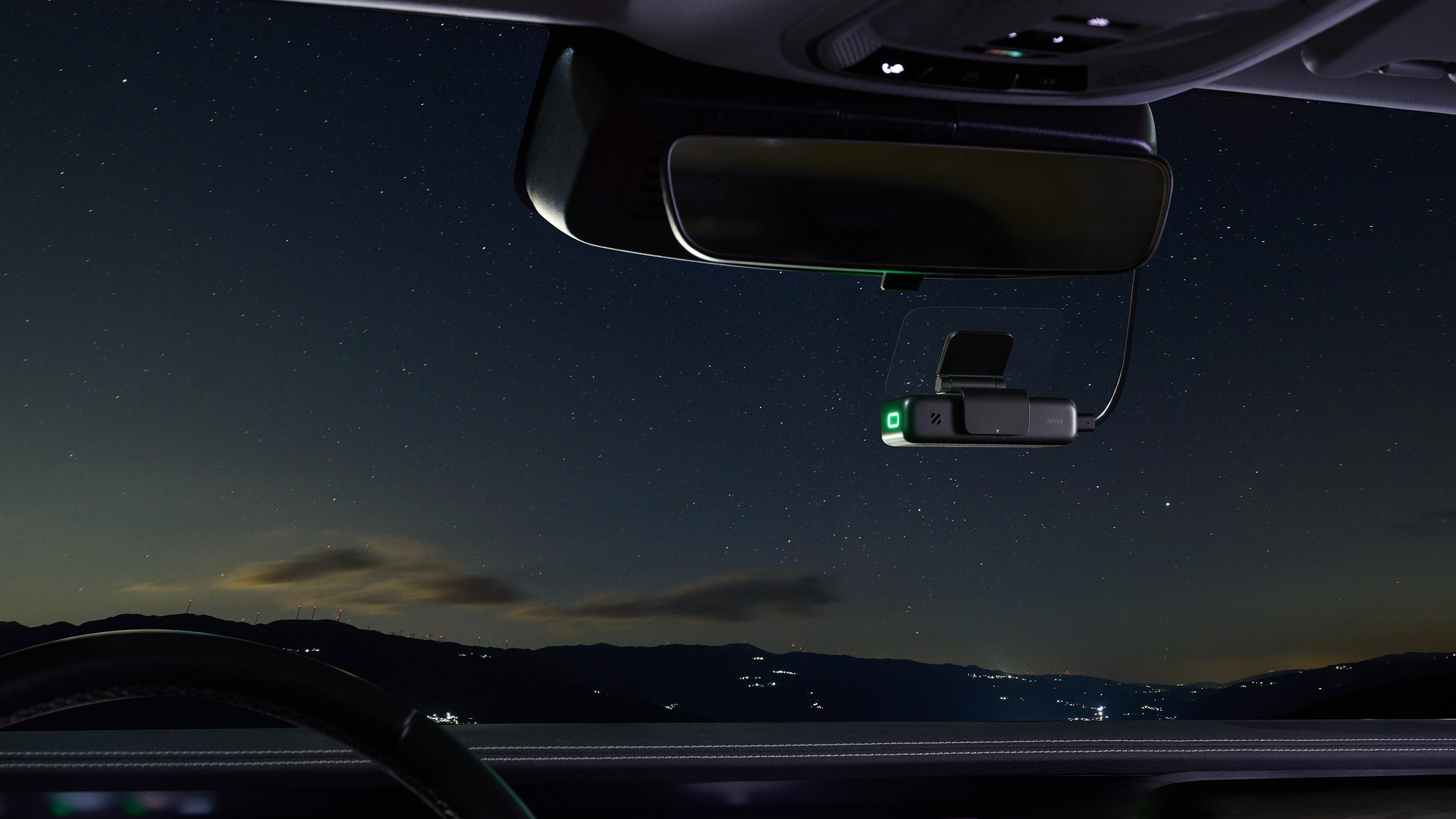
The 4K M800 fits in the palm of your hand, making it easy to install and keeping your windshield clear. Despite its compact design, it features an advanced heat dissipation system with a serrated ventilation structure and nano-thermal coating, ensuring reliable operation even in extreme temperatures.
Remotely monitor your vehicle in real timewhether parked or on the move. From upgraded App Live Streaming to instant alerts for collisions or suspicious activity, you're always in control. Capture photos or videos from afar, track live routes when others are driving, and even locate your car in a crowded lot with walking navigation. Smart, seamless, and always within reach.
*The 4G Hardwire Kit is required, sold separately, and available in select countries.
Offers faster performance and a longer lifespan than TF cards, ensuring safer, more reliable recording without video loss, errors, or frequent replacements. Your footage stays secure, and your drive remains worry-free.
Automatically saves a 30-second emergency clip, capturing 2 seconds before and 28 seconds after impact to ensure full context when it matters most.
Enjoy lightning-fast download speeds of up to 40MB/s with the newly upgraded Wi-Fi on the 5GHz band. Now, you can download a 200MB video in just 5 seconds The data is from the 70mai Lab. Download speeds may fluctuate due to factors such as environmental conditions and the smartphone used.
Captures clear and lifelike daytime footage by adjusting brightness where it matters most, like the road and sky. Important details such as license plates remain sharp, while glare is reduced to keep colors vivid and balanced throughout the frame.
Low-light clarity is enhanced through dynamic exposure adjustment and high-gain image enhancement delivering sharper images with less noise, balanced exposure, and improved glare control in dark or complex lighting conditions.
Upgraded for optimal night parking surveillance, it delivers clear, full-color footage in dark environments by extending exposure time, boosting sensor sensitivity, and reducing image noise capturing more detail without extra lighting, even in dim garages or pitch-black streets. *The 70mai Hardwire Kit or 4G Hardwire Kit is required for all parking surveillance functions, sold separately.
The 4K M800 supports HDR recording across front and rear camera, stably capturing highlight-shadow details to deliver an enhanced dynamic range. Whether you are driving in overcast weather, bright sunlight, or transitioning through tunnels and underpasses, the 4K M800 consistently provides stunning, vibrant visuals at all times.
The 4K M800 delivers over four times the clarity of 1080P with its 3840×2160 resolution. But it offers more than just sharpness: HDR brings every frame to life with cinematic depth, rich contrast, and vivid color accuracy. It captures the road from subtle lighting shifts to shadowed details and complex textures with movie like realism.
Precisely track routes with smart driving alerts.
Saves the last few seconds before impact to ensure a complete evidence chain.
*Hands-free control and easy access via the App.*Voice control currently supports English and Mandarin only.
Instantly download footage at speeds up to 10MB/s.
Find the answers of most asked questions here.
Calibration failures may be out of the following reasons: 1. The dash cam’s camera is too far from the car front, i.e. too close to the left and right sides or the upper and lower sides. 2. The car speed during most of the calibration process is less than 40 km/h. 3. The nighttime light is too dim to accurately identify the lane line. 4. The lane line is blurred and unidentifiable.
1.Please check the connection between the dash cam, power cable and car charger.
2.This situation might caused by unmatched voltage between the cigarette lighter socket and the dash cam.
Make sure you use the standard power cable and car charger within the package in case of incompatibility issues.
If you cannot see the dash cam’s Wi-Fi hotspot name in your phone’s Wi-Fi hotspot list, please refer to the followings: 1. Make sure the dash cam’s Wi-Fi hotspot is on. If it is not, press the power button to turn it on. 2. Turn off the wireless LAN (or WLAN) and then on again on your phone’s system settings. After doing all above, if you still cannot find the dash cam’s Wi-Fi hotspot, please contact customer service onlinehelp@70mai.com
If you enter the wrong password when connecting the hotspot and try to input the password again in a short time, iPhone may recognize your operation as illegal. So that a pop-up dialog box “Cannot join the network xxxx (xxxx is Wi-Fi hot spot name) ” displays on the screen. In this case, please exit the password input interface, back to the Wi-Fi hotspot list, select the dash cam’s hotspot and then re-connect. If the above operation still cannot make a successful connection, please forget the dash cam’s Wi-Fi hotspot in your phone’s WLAN list then re-connect.
The dash cam will automatically stop recording in the following situations: 1. Formatting the internal memory card 2. Restoring factory settings 3. Updating firmware 4. Any operation on the album when connected to the 70mai app 5. Detecting abnormity in the internal memory card, for instance, non-dash cam related files are detected. In this case, please format the internal memory card according to the voice prompts. The dash cam will automatically start recording when exiting the above operations.
Possible Reason 1: The dash cam’s positioning system fails to obtain positioning information and cannot generate driving record data. Solution: Check the status on the dash cam’s home screen. If the positioning icon is not shown, this is the reason. Bring the dash cam to an open space and wait for around 3 minutes before trying again. Possible Reason 2: The car did not move, so no driving record data is generated. Solution: Ensure that the dash cam is correctly installed in the car and working normally. Drive the car over a certain distance to generate driving record data. Possible Reason 3: Driving record data was not synchronized to the 70mai app. Solution: See the answer to “How can I synchronize the driving record data saved in the dash cam to the 70mai app?” Possible Reason 4: The phone has no network connection. When viewing driving records, the phone requires a network connection to load the map. Solution: Disconnect the phone from the dash cam’s Wi-Fi hotspot and connect it to a network (WLAN or mobile data network). Tap My > Driving route to enter the “Driving route” page to view the records.